


Free book tools for your next publishing step
A book moves through several kinds of preparation before it is ready to print. The interior needs a settled page size, the cover must fit the finished book, and the illustrations need enough detail at their placed size. These book tools help authors and designers check those practical details while keeping the decisions visible. Open a tool, enter the information for your edition, and review the result before returning to your layout.
Everything runs locally in your browser. The image checker reads the files you choose on your own computer; it does not upload them. The cover calculator and barcode generator create downloadable artwork in the browser too. You can use one tool for a quick check or move between all three while preparing the same book. Keep your final publishing specifications with your project so later changes are easy to trace.
Book design tools that work together
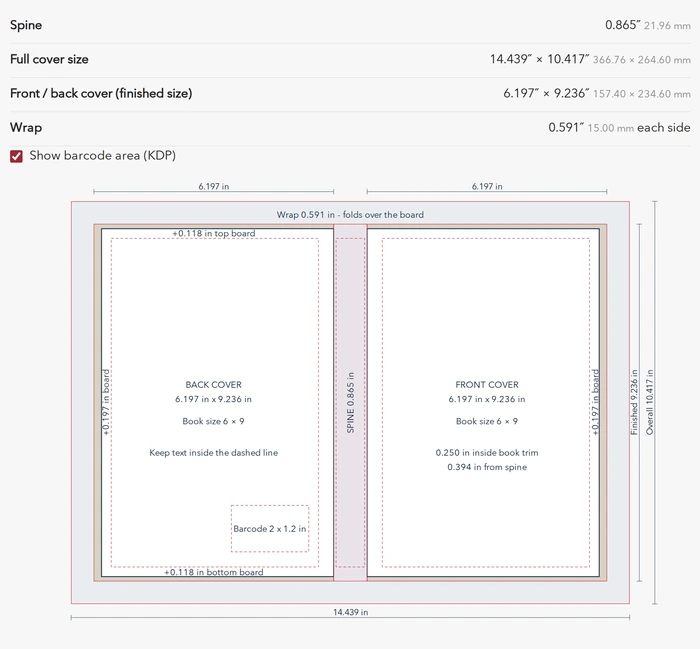
Start with the spine width and cover size calculator after the interior page count is final. Compare paperback and hardcover spine measurements, then switch to the complete cover when you need panel sizes and guide positions. The drawing separates finished panels from bleed or wrap, helping you arrange the back cover, spine and front cover on one sheet. For an earlier decision, read how to choose a book trim size.
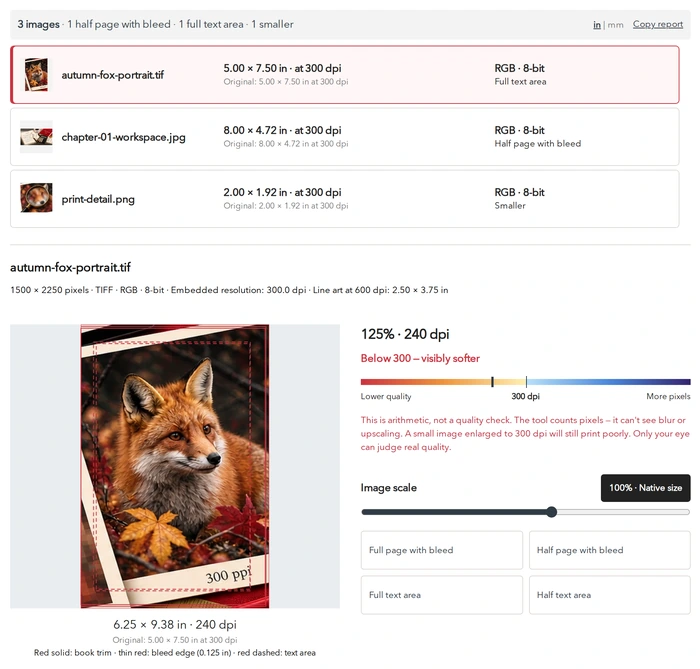
Use the image resolution checker for print before placing illustrations. Choose the intended print size and compare effective resolution with the target for photographs or line art. A stored resolution label alone cannot tell you whether an image will work at that size. The checker helps you identify files worth replacing before they become part of a finished layout; it does not retouch or enlarge them.
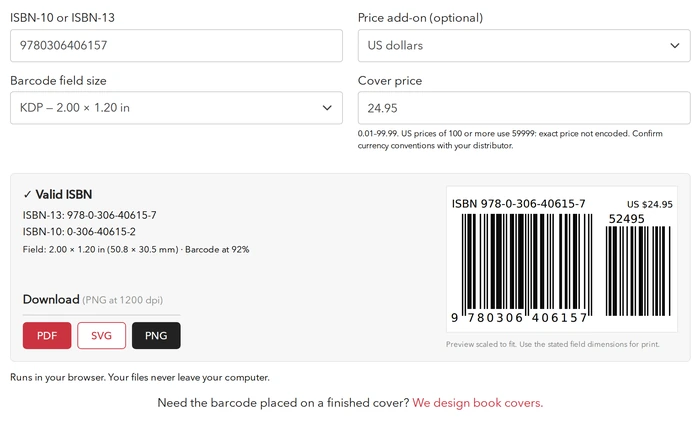
Finish with the ISBN barcode generator when you have the number assigned to your edition. Check its digits, choose an optional price extension and download artwork for the back cover. A valid mathematical check does not establish ownership of an ISBN. Compare the number with your publishing records and follow your printer’s instructions for the finished cover.
A practical order for preparing your book
Begin with the decision that is ready to be made. If your manuscript is still changing, check its images and keep the original files organised while the interior takes shape. Once the page format, paper and final page count are settled, calculate the spine and full cover sheet. Then prepare the barcode for the assigned ISBN and place it in the correct area of the cover. These self-publishing tools work together because the same production choices affect several parts of the finished book.
Keep the results with the project rather than treating them as isolated downloads. Note the settings behind a cover template, preserve the original images alongside their report, and label the barcode for its edition and price choice. When a setting changes, return to the affected tool and replace the old result. This gives both author and designer a clear reference during proofing and makes it easier to identify which measurement belongs to which file.
These are tools for authors as well as book design tools for production work. You can use them to prepare a question for a designer, compare a proposed trim size or understand why a particular illustration needs a smaller space. If you want help turning those decisions into finished files, explore BrainON’s services and use the book design price calculator to estimate the project.
Questions about these self-publishing tools
Which free book tools can I use without an account?
All three. You can calculate, inspect results and download the available artwork without creating an account.
Where do my files go?
They stay on your computer. File inspection and artwork generation happen in the browser.
Which tool should I use first?
Choose the one that matches your current decision. Finalize the interior before setting the cover spine.
Do the results replace printer specifications?
Keep the printer’s current instructions alongside your project and review the final files in its preview workflow.
Can I use these tools for authors before hiring a designer?
Yes. Use them to prepare your files and record production questions before discussing the finished book.
Do I need all three tools for every project?
Choose the checks that match your current files and publishing plan. A project can use one tool without completing the others.
Can BrainON help prepare the finished book?
Explore book interior layout and book cover design, or return to Designer Notes for practical production tips.